
Documentation
Quick Start
Get up and running in just a few minutes.
This guide will walk you through the basics of getting started with Subterranean.
First, you'll need to create an account through the sign up page, where you will then see a home page that would contain all of your projects.
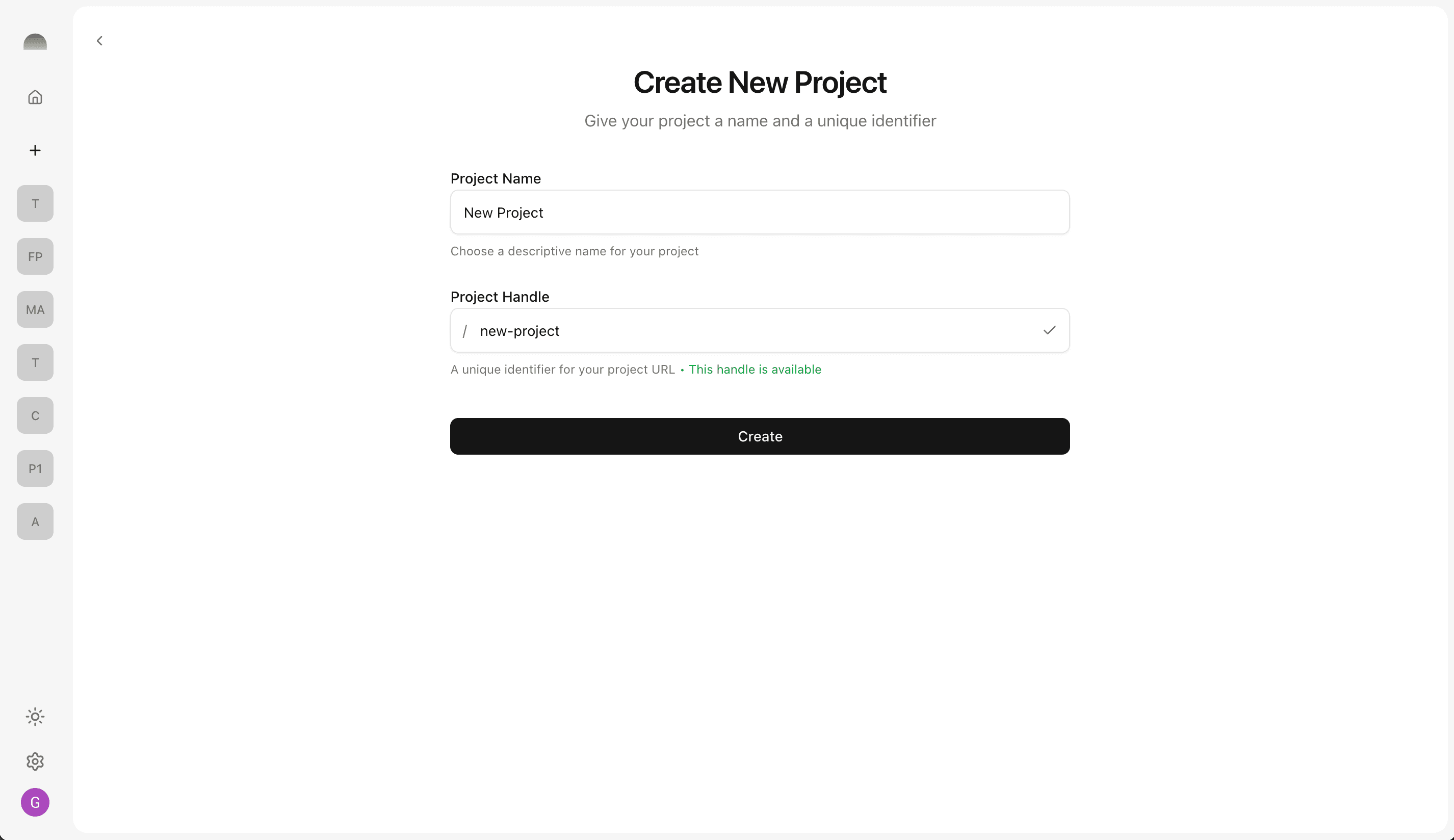
To create a new project, click the "New Project" button in the top right corner of the home page. You can add a name and optionally change the unique identifier that will be used for things like your project's URL. The page will tell you if the ID is in use or not.
After successfully creating, you will be on the project page which contains all of the core tools to start building your application. On the left side of the page is your chat interface with the Assistant, which has access to your project data and several other AI agents specalized in particular tasks.
- Plan and design: Ask questions and have a discussion with the Assistant to help brainstorm your idea.
- Build an application: Ask Assistant to start building something to get started right away.
- Setup your database: Prompt Assistant to create data tables for specific purposes.
- Build the backend: Integrate an existing application UI with the backend data and functions you have in your project.
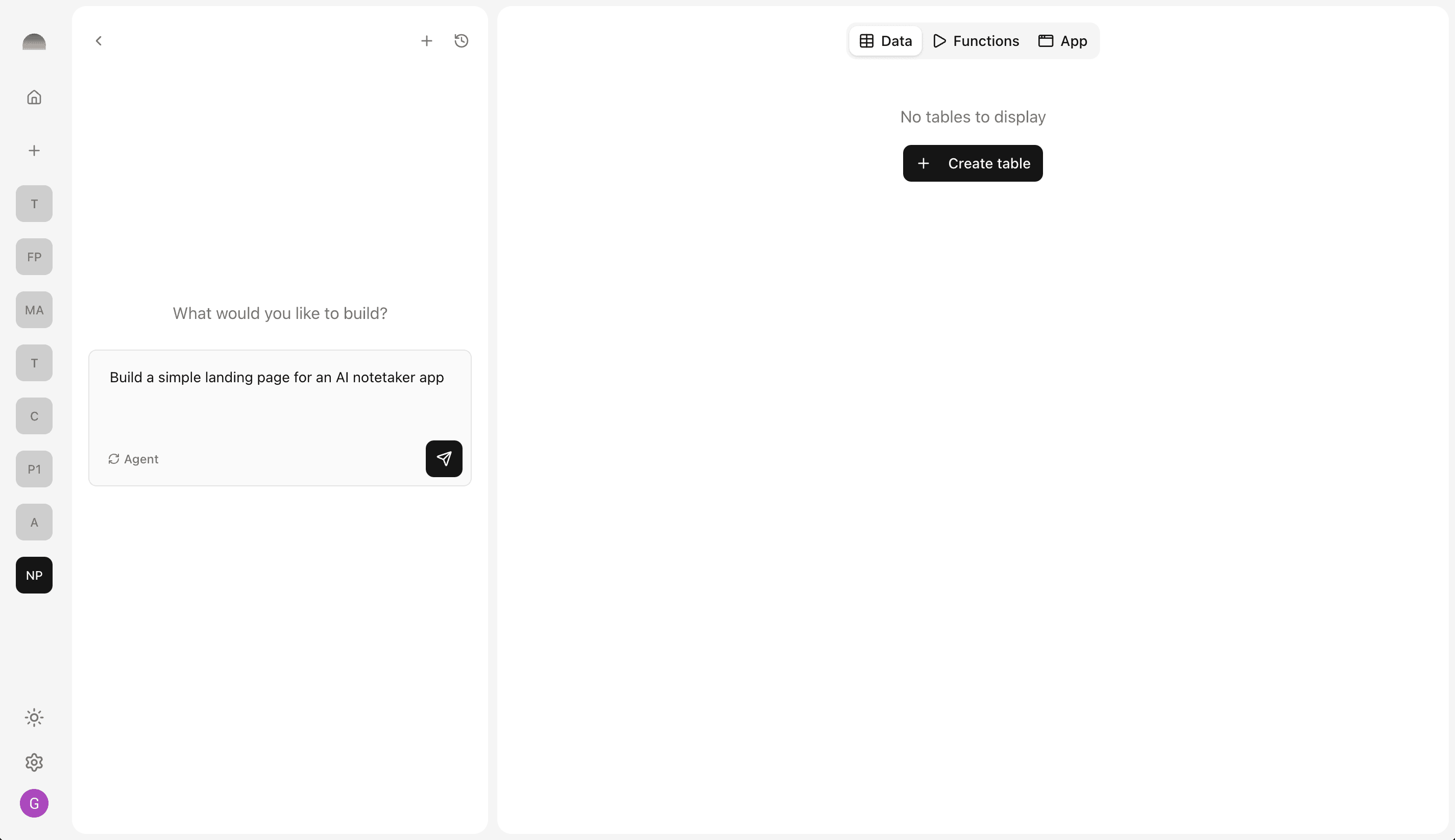
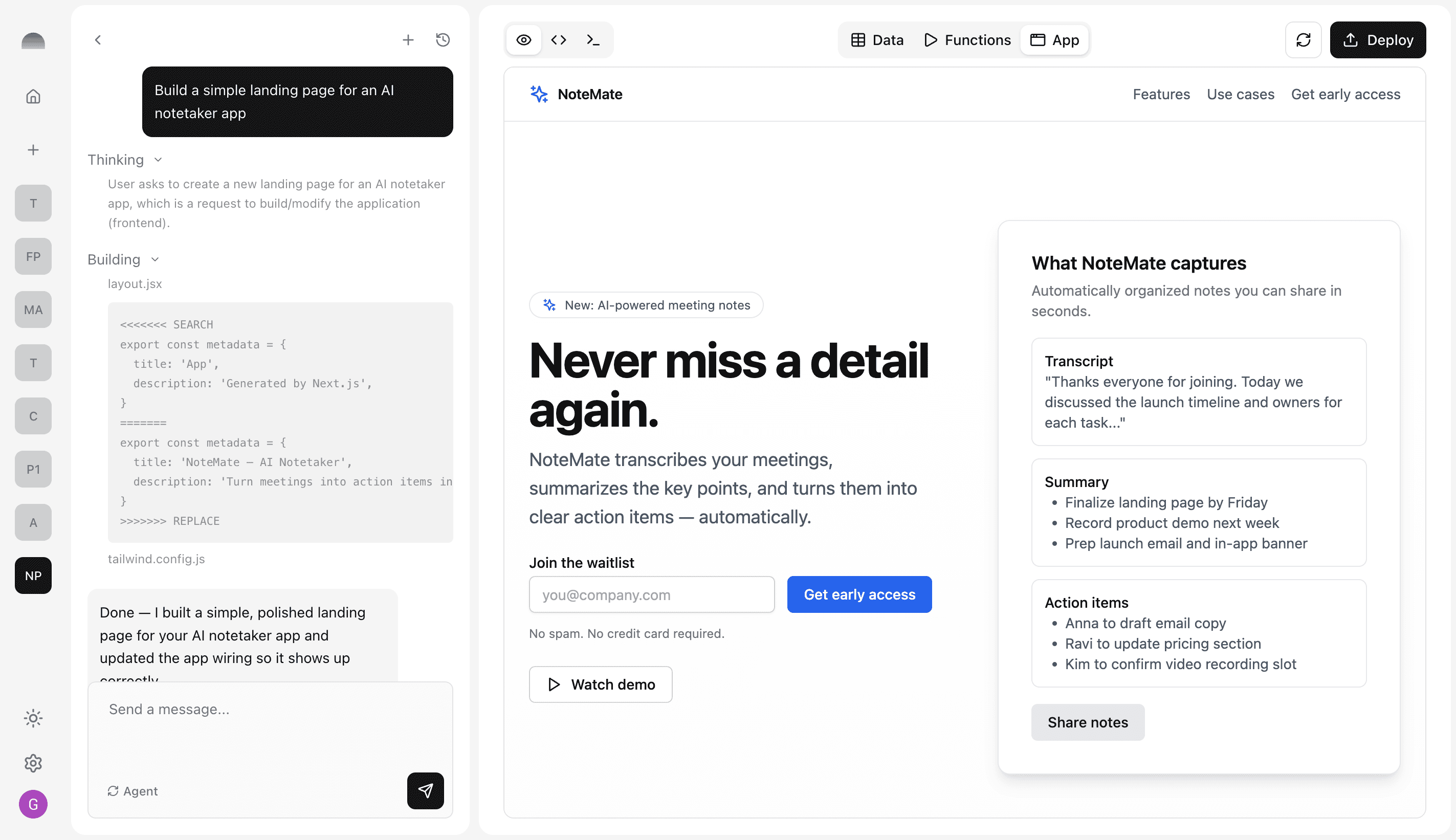
In this specific walkthrough, we'll ask the Assistant to build a simple UI for us. We can see the different steps and reasoning as the agents are progressing.
After the Assistant has finished, we can view changes in the appropriate tab at the top of the screen. Here, we view the "App" section to see the UI that was built.
Now let's explore the other two tabs, "Data" and "Functions".
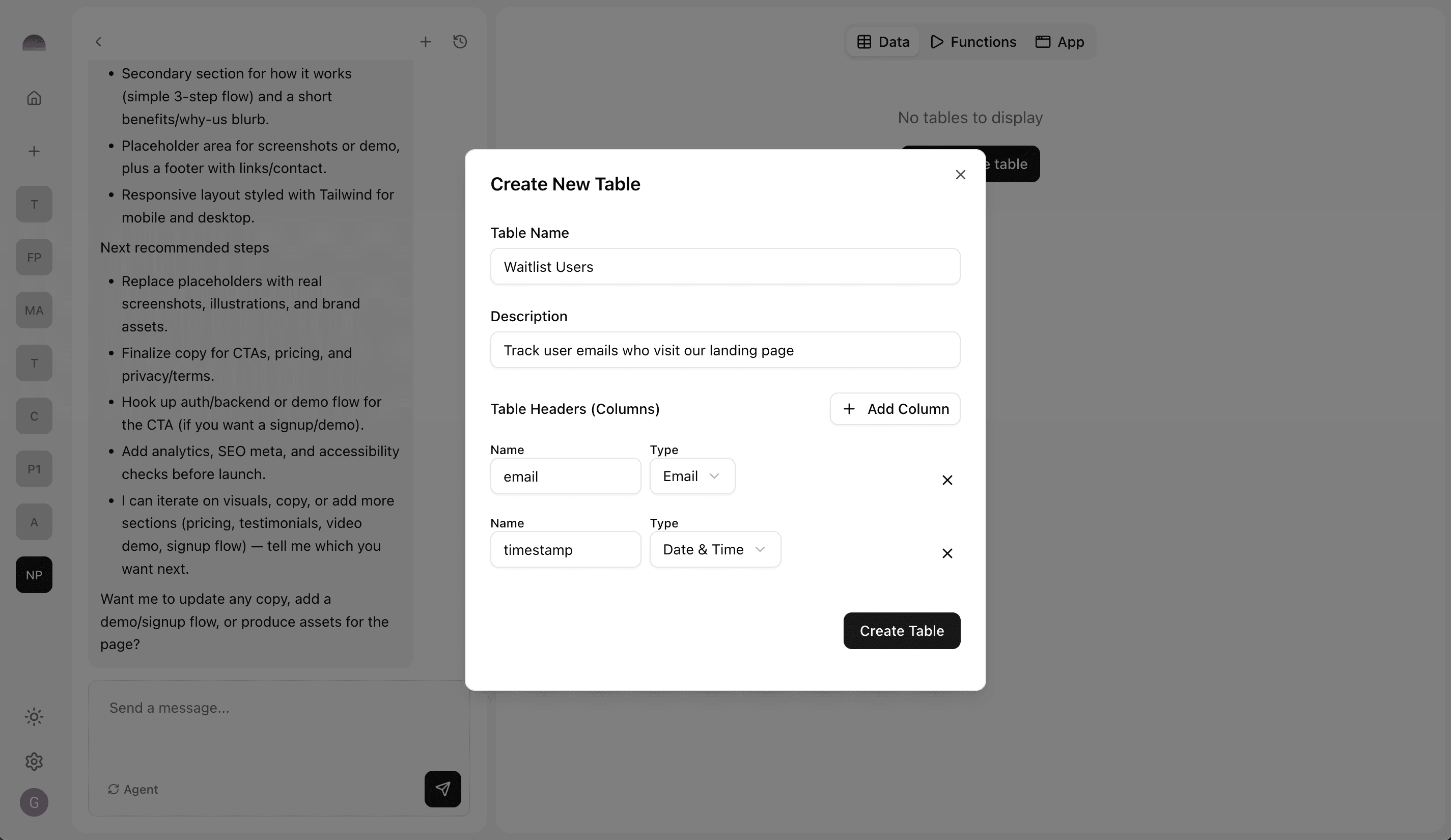
Data tab displays interactive tables that can store and represent any data object that you need. You can manually create tables and add items or ask the Assistant to generate a new table for you.
The Functions tab contains a list of all the functions available to you and your application. This usually includes a few core functions and a set of operations for each data table you have. More features will be added in the near future.
Prompting the Assistant to integrate or build in backend functions for a particular task will execute a coding workflow to replace any placeholder or mock requests in the UI with real ones that interact with your backend and data tables.
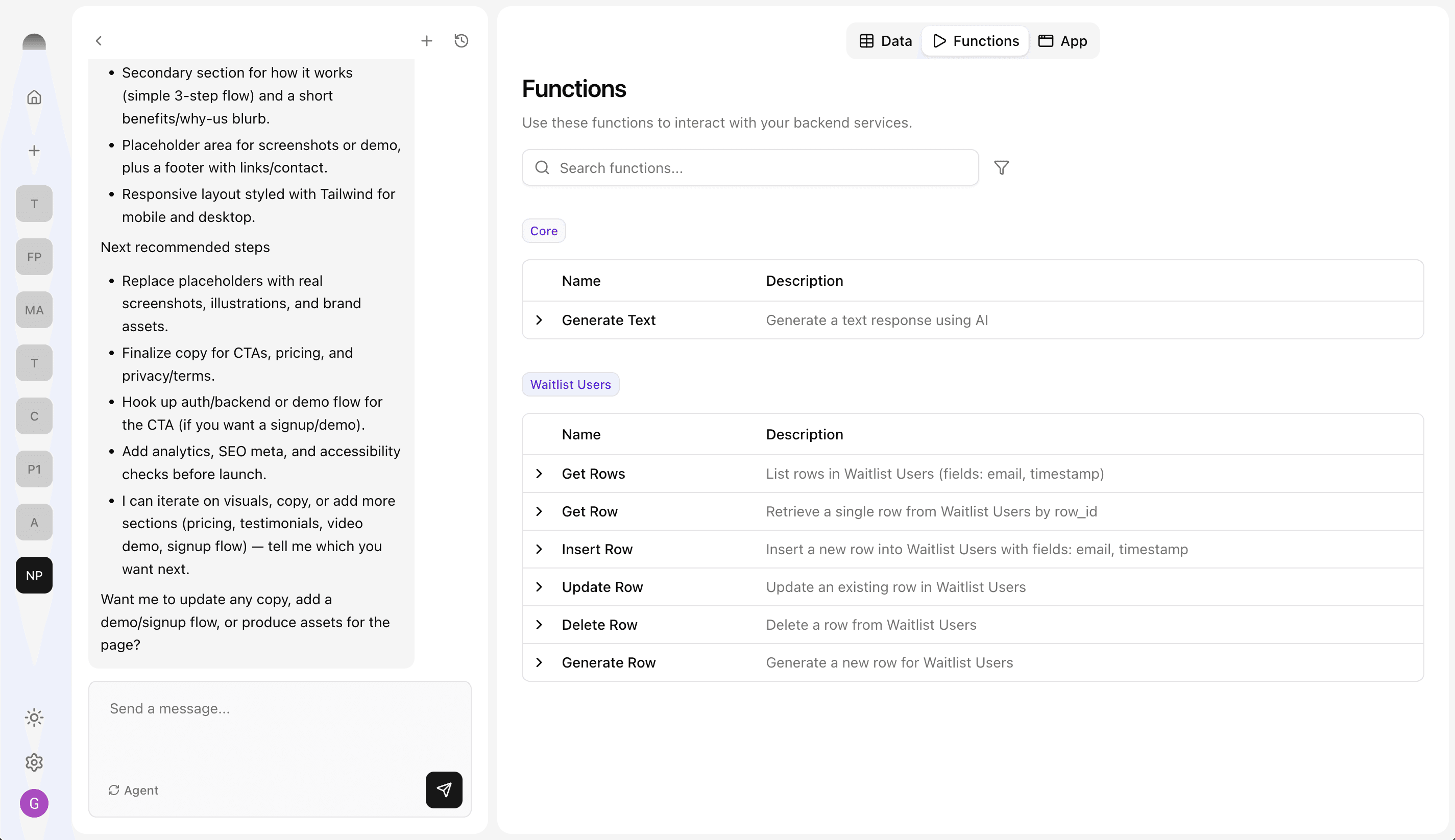
Continue interacting with the Assistant or manually with your tables and functions to build out a prototype of your next app idea.
Once you've reached a checkpoint, you can click the "Deploy" button for a finished App build to automatically deploy it on our system. This will release your app on a live URL at the subterranean.io/preview path.
Reach out to us at hi@subterranean.io for feedback or questions, and stay tuned for our emails and blog posts for big updates!